Resize to Instagram Story Size
Get the exact 1080 x 1920 px size Instagram recommends. Stories and Reels fill the whole phone screen at 9:16.
Instagram Story · Step 1 of 3 · Add your photo
Drop an image to resize
or paste with Ctrl+V · JPG PNG WebP HEIC GIF · max 25 MB
Processed on this device. Nothing is uploaded.
Example
Before and after
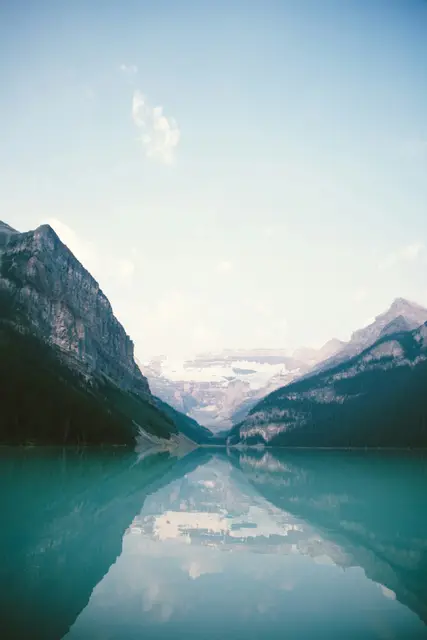
We ran this sample through the instagram story tool above. The numbers under each image are measured from the real files.

How to
How to resize a photo to instagram story size
- 1.
Add a photo. From your gallery, your camera or a screenshot.
- 2.
Fill or fit. Fill crops to 9:16 from the center. Fit keeps the whole photo with a border.
- 3.
Download. A 1080 x 1920 px image, ready to post on Instagram.
Why this size
Instagram sizes at a glance
Stories and Reels fill the whole phone screen at 9:16. Uploading the exact size means Instagram does not crop or re-compress your image in ways you did not choose.
The tool scales once, straight to 1080 x 1920, from your original pixels, so the result stays sharp. Start from a photo at least as large as 1080 x 1920: enlarging a small image cannot add detail. For a small old photo, the AI upscaler can redraw it larger first.
| Use | Size |
|---|---|
| Story or Reel | 1080 x 1920 px (9:16) |
| Safe area | Leave about 250 px free at the top and bottom |
| Square post | 1080 x 1080 px |
Tips
Tips that make a difference
Start from the original photo
Uploads get compressed again
Avoid
Common problems and fixes
- Text hides behind the profile name or reply barKeep text out of the top and bottom 250 pixels or so.
- Black or blurred bars appearThe photo is not 9:16. Resize with Fill to cover the whole screen.
- The image looks blurry after postingInstagram enlarges images that are smaller than its size, which makes them soft. Start from the original photo, at least as large as the size above.
FAQ
Instagram Story: questions
Checked
How we checked this page
Checked by the SizePort team on .
We test the tool with sample photos before it goes live and check that the sizes on this page match what it produces. Rules and platforms change, so if something here is out of date, tell us and we will correct it.
How the tool works
The tool scales your image once, from the original pixels, to the size you set. Everything happens in your browser; your images are never uploaded.